- DATE:
- AUTHOR:
- The Avidon Health team

Tracker Dashboard, Program Editor, Activity Bands, and a Brain Challenge
This release is mostly about closing the gap between what the platform knows and what you can do with it. The new Tracker Dashboard surfaces how members are engaging with trackers, at a glance or in detail, for standard and custom trackers alike. The Program Editor redesign makes building and configuring programs (including habit builders, Challenges, and Group Programs) significantly less of an ordeal, with a cleaner layout, focused tabs, and inline warnings that catch problems before you publish. Activity Bands bring a consistent lifecycle framework to Member Search and the Tracker Dashboard, so your filters and your reports are finally speaking the same language. And on June 1st, the next Autopilot Challenge kicks off: a two-week cognitive experiment your members will enjoy.
Tracker Dashboard, Built for the Questions You're Already Asking
Knowing what your members are tracking is one thing, but knowing how consistently, which ones they're returning to, and where engagement drops off is another. The Tracker Dashboard is built for the second question. It's a dedicated, read-only reporting space that shows you exactly how members are using trackers: what they're logging, which ones they're returning to, and how engagement holds up over time.
All Tracker Data in One Place
Tracker data is organized into a single destination with dedicated views for both standard and custom trackers. Navigate between system-defined metrics and organization-specific data without hunting across the platform.
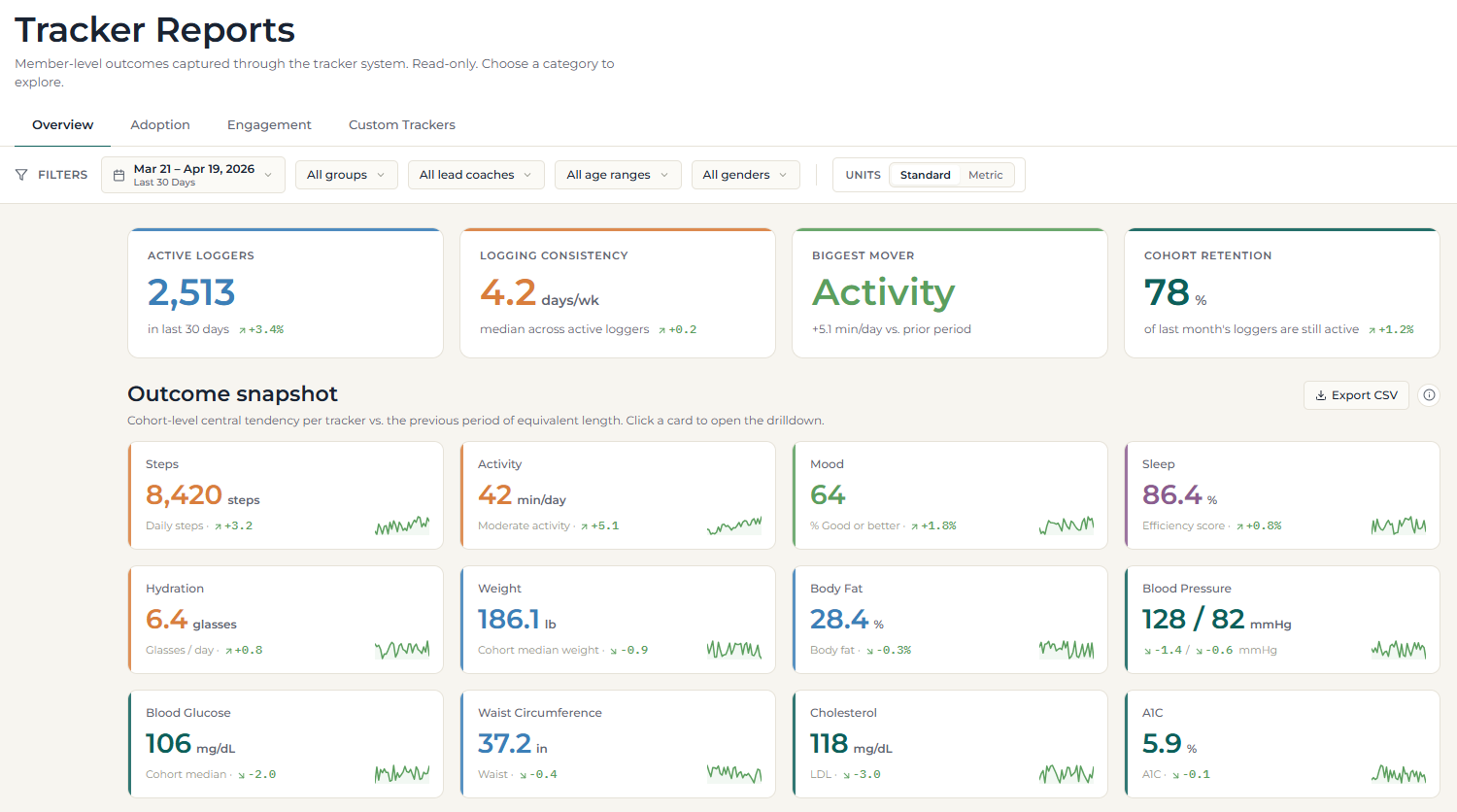
Four Tabs, Four Different Questions
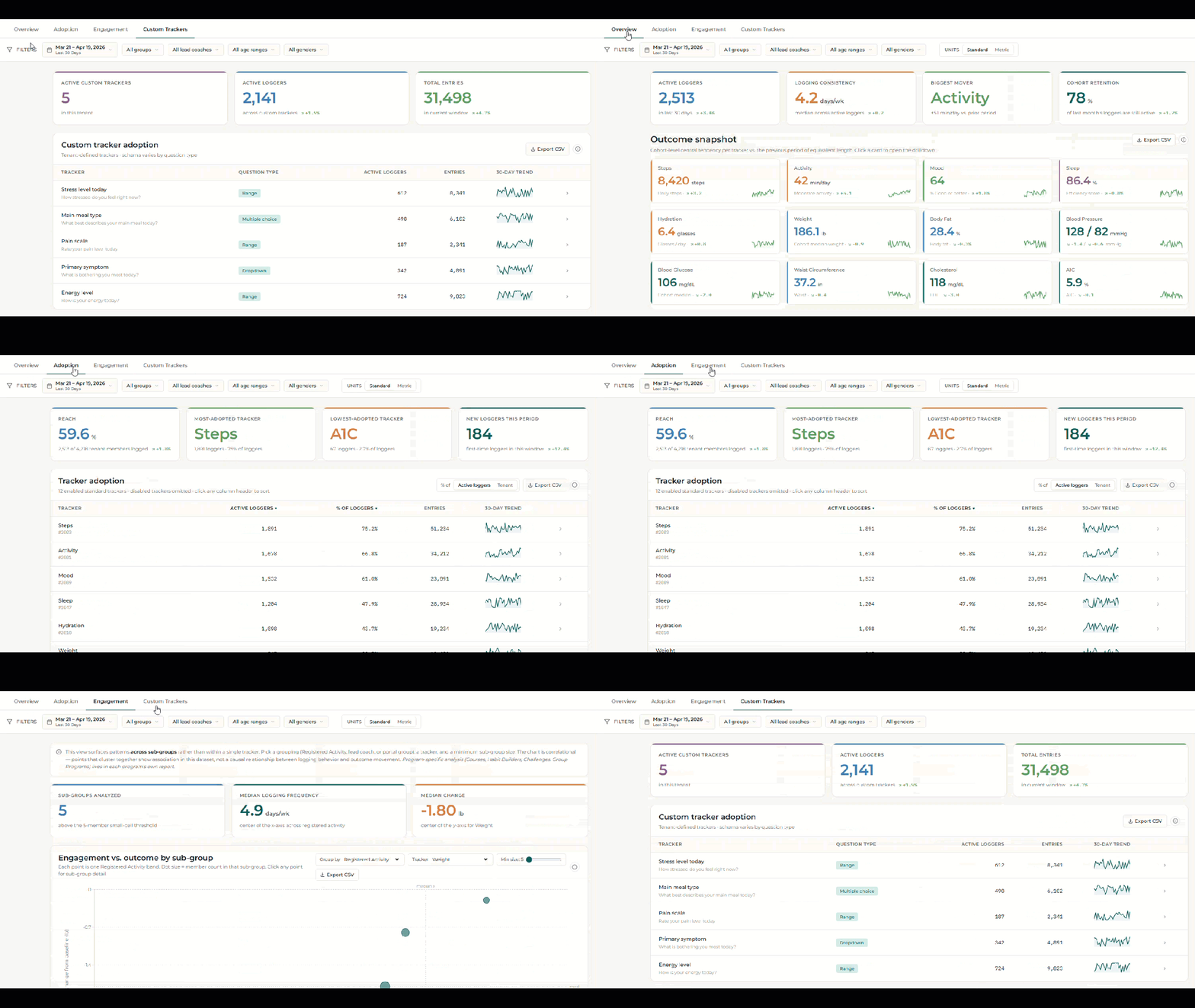
The dashboard is organized into four tabs, each answering a distinct question about your tracker program:
Overview—Is it working? A KPI strip (active loggers, logging consistency, biggest mover, cohort retention) plus an outcome snapshot card for each enabled tracker. Click any card to drill into that tracker's detail view.
Adoption—Who's using what? Adoption KPIs including reach, most-adopted, lowest-adopted, and new loggers, plus a sortable per-tracker grid showing logger counts, percentage of cohort, entry counts, and 30-day sparklines.
Engagement—Where are the patterns? A scatter chart plotting logging frequency against outcome change-from-baseline across sub-groups. Admins choose how to slice the population: by how long members have been registered, lead coach, portal group, age range, or gender.
Custom Trackers—Overview and drilldowns for any trackers your organization has defined, with support for multiple-choice, dropdown, and range response types.
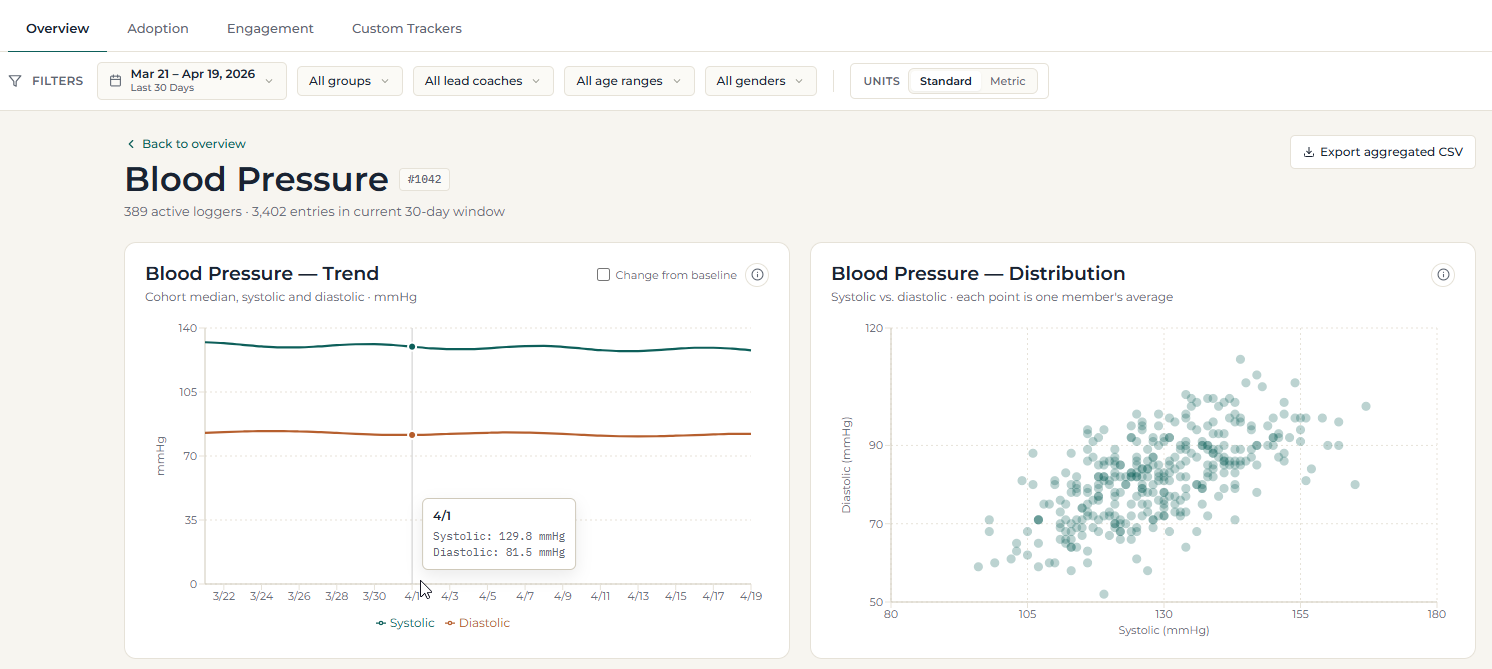
Surface-Level Trends and Member-Level Detail Every standard tracker has its own drilldown with trend and distribution views. Steps and hydration get a trend line and histogram; Blood Pressure tracks systolic and diastolic independently (seen below); Sleep reports on efficiency score (time asleep vs. time in bed) rather than raw duration; Cholesterol covers all four metrics separately; and Mood uses entry-level proportions across its five-point scale.
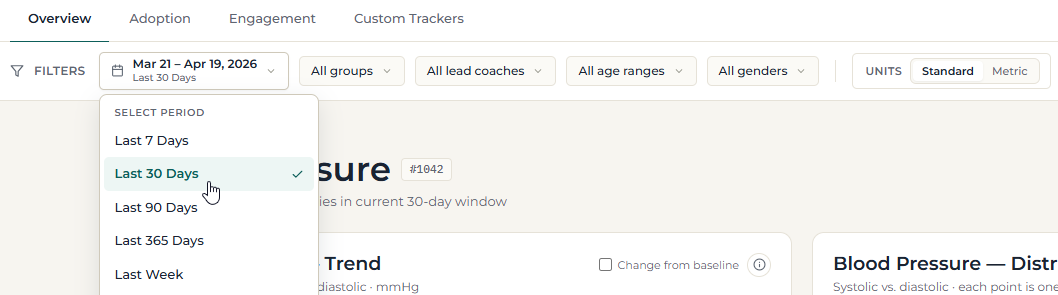
Filters That Match How You Think About Your Population Every view can be filtered by date range, lead coach, age range, gender, and portal group, with a toggle between metric and standard units.
Custom Trackers Are Covered Too Organizations that built custom trackers to measure what matters to their population now have a reporting layer to match—same dashboard, same drilldown structure, regardless of response type.
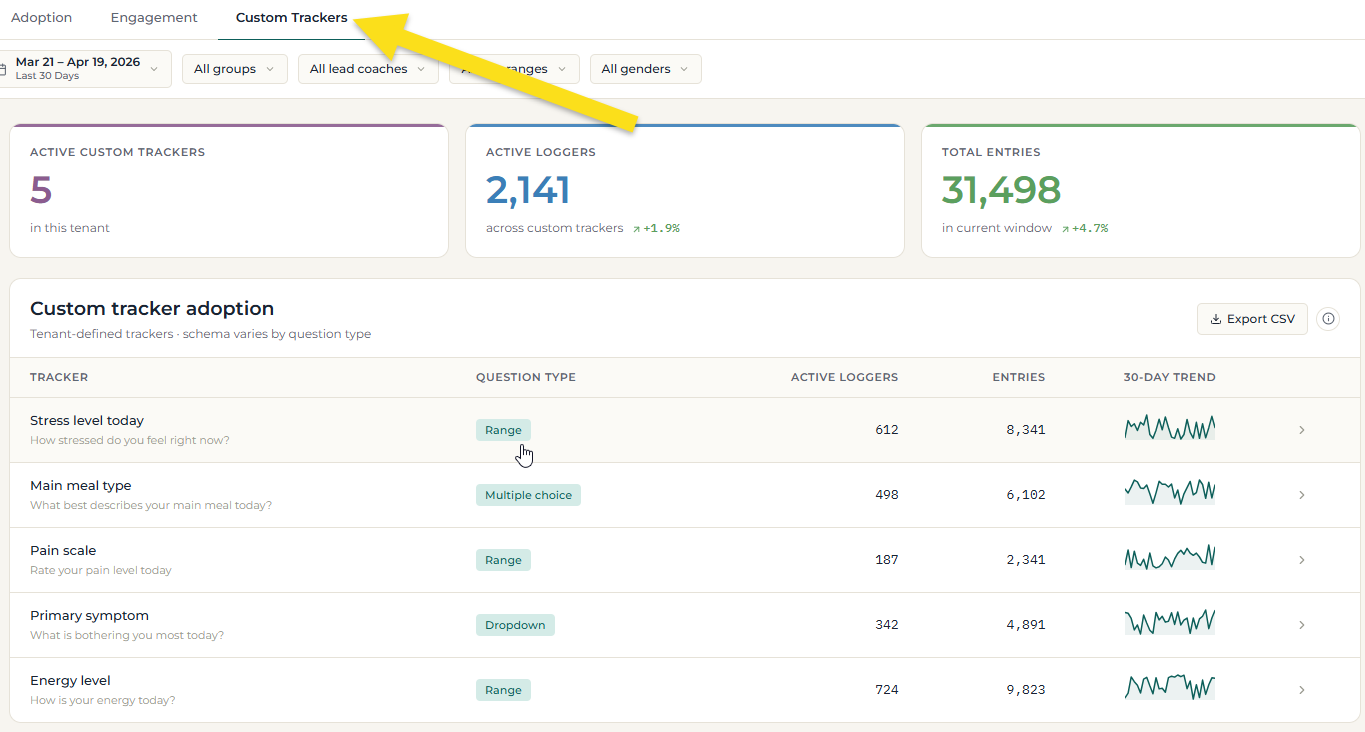
A Note on How This Data Is Presented The Tracker Dashboard is cohort-level reporting, not individual member data. Sub-groups below the minimum threshold are suppressed and the suppression is visible in the UI rather than silently hidden. There's no clinical framing, no risk labels, and no "favorable" or "abnormal" designations—direction of change is descriptive, because whether a delta is meaningful depends on each member's individual context, which the platform doesn't know. This is intentional and worth communicating to your team.
Why It Matters, in a Nutshell
Proof when it counts—Real engagement data, by tracker, is right there when you need it.
Less digging, more deciding—No reports to run, no one to ask. The at-a-glance views do the interpreting for you; drill down only when you want to go deeper.
Custom trackers, finally visible—Organizations that built custom trackers to measure what matters to their population now have a reporting layer to match.
Built for busy teams—This is the difference between having data and actually knowing what's happening with your members.
This is the difference between having data and actually knowing what's happening with your members.
The Program Editor, Redesigned
If you've ever lost your place mid-configuration or scrolled past a setting you needed three screens ago, this one's for you. The Program Editor is getting a significant redesign—less scrolling, better organization, and new controls for how activities are displayed and completed across Programs, Challenges, and Habit Builders. The editor now works the way program building actually works: one focused task at a time.
What's New
Program Settings, Restructured for Clarity
Program Settings are reorganized into four focused sections: Program Completion, Activity Behavior, Participation & Display, and Registration—so the setting you're looking for is where you'd expect it to be.
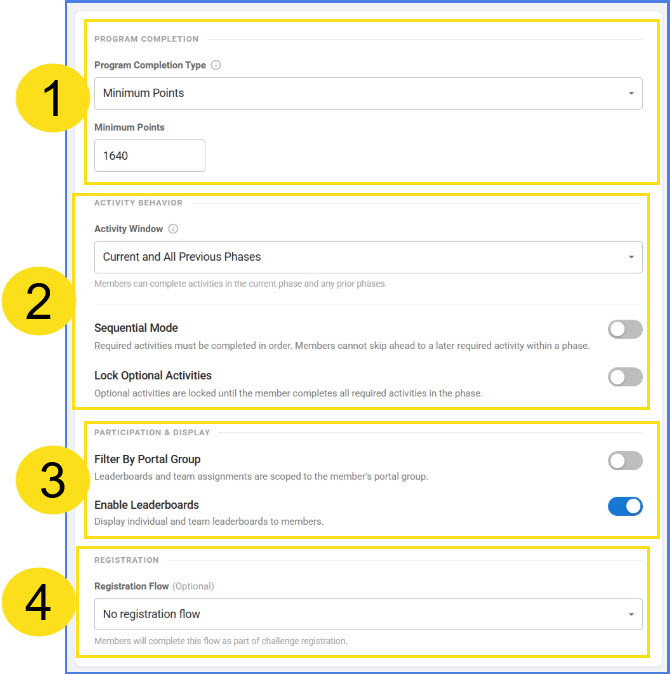
Within Activity Behavior (2), two new options give teams more control over how members progress through a program:
Sequential Mode ensures required activities are completed in order within a phase; members can't skip ahead before they're ready
Lock Optional Activities prevents access to optional activities until required ones are finished, useful when required activities build the foundational knowledge that optional ones assume
Terminology is also being simplified and inline guidance is being added throughout, so you spend less time hunting for answers and more time building.
Phase Configuration, Split into Two Tabs
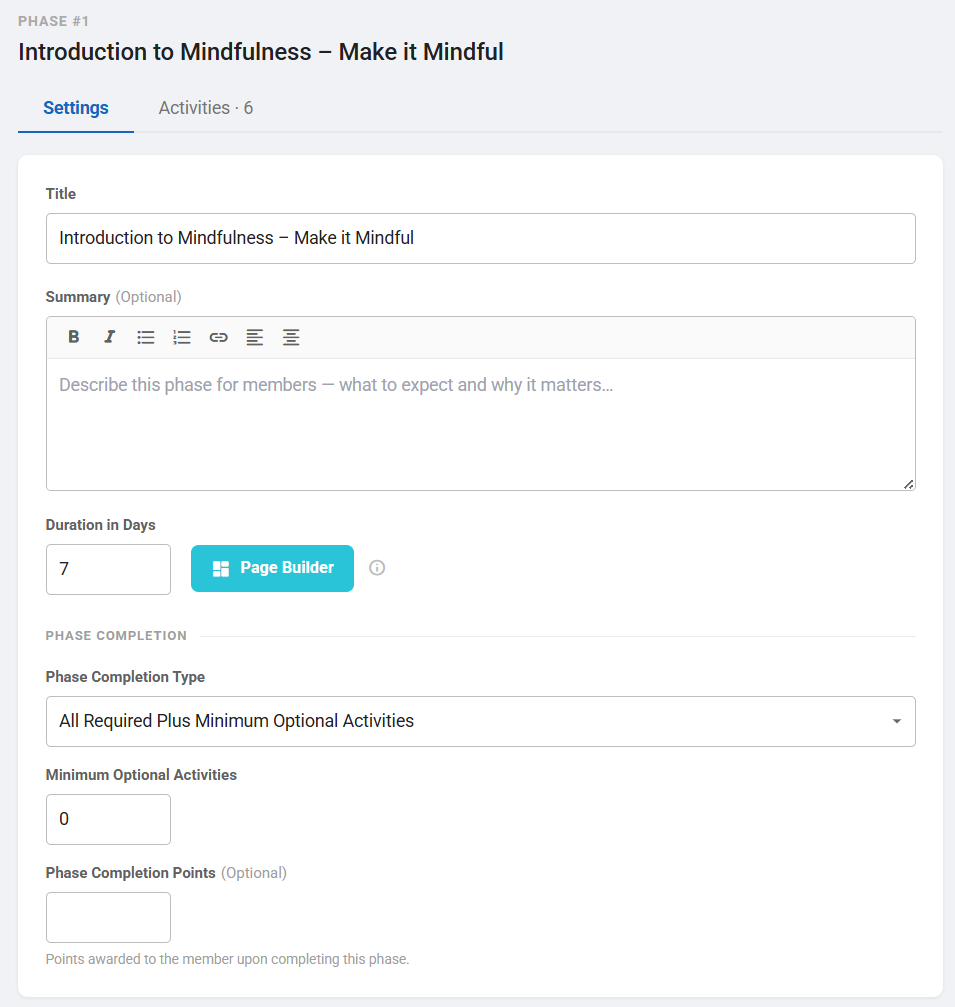
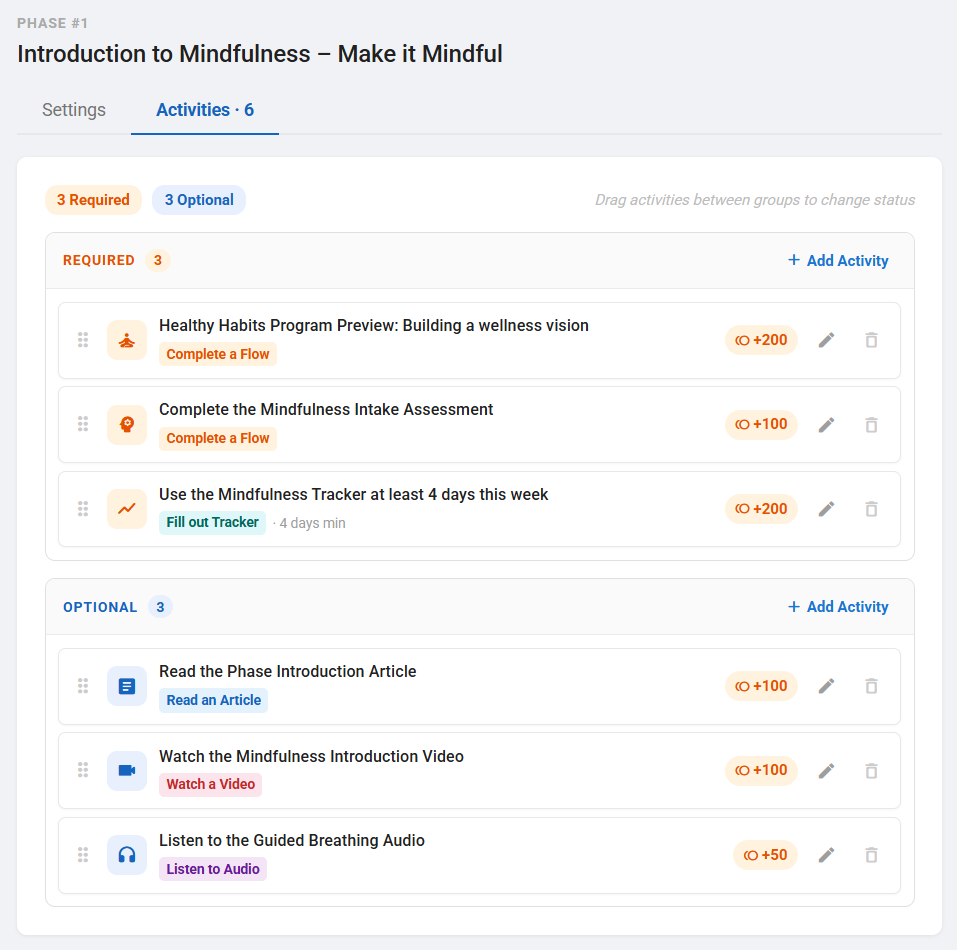
Phase configuration is now split into Settings and Activities tabs: one tab for how the phase behaves, one for what's in it. No more scrolling past a wall of activity cards to adjust a phase completion setting.
The Settings tab consolidates all key phase configurations into a single logical layout: an optional Summary field, a grouped Phase Completion section (minimum points, activities, and optional activities in one place), and the Page Builder button repositioned inline with Duration in Days to cut down on vertical footprint.
The Activities tab moves from a long scrolling form to a card-based layout that mirrors what members actually see. Required and Optional activities are clearly grouped; drag-and-drop handles reordering; and inline warnings flag configuration issues before they become surprises—like having no required activities when the phase completion type is set to "all required activities."
A Rebuilt Activity Edit Dialog
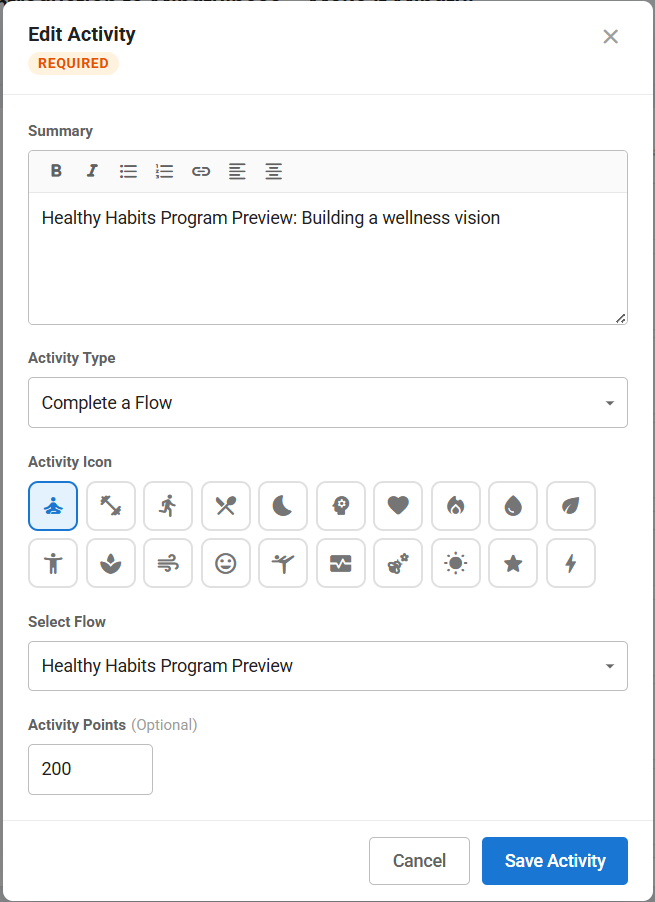
The activity edit dialog is redesigned to keep focus on one activity at a time, with some expanded options:
Rich text input for the Summary field
Resource selection for content-based activities (articles, videos, audio)
Icon picker for General and Flow Activity types
For tracker entries: configurable completion criteria—streak, threshold, or threshold streak—along with Minimum Days and Minimum Entries
Why It Matters, in a Nutshell
Less time in the editor—Cleaner organization and focused tabs mean program teams can configure, adjust, and launch without getting lost. More time for members; less time fighting the tool.
Fewer surprises at launch—Inline warnings catch configuration issues before a program goes live; HR teams aren't troubleshooting after the fact.
Easier to hand off—A more intuitive editor isn't dependent on the one person who knows where everything lives. That matters for small HR teams and consultants managing multiple clients at once.
Together, these changes make building the member experience feel a lot less like an obstacle course.
Activity Bands, Now Consistent Across the Platform
Not all member activity is created equal. A member who logs in during their first three days is doing something very different from one who's still engaged after two years, and treating those two data points the same flattens the story your data is trying to tell. Activity Bands give that data its shape back by applying a consistent lifecycle framework everywhere member activity is measured.
What's New
A Unified Band Framework
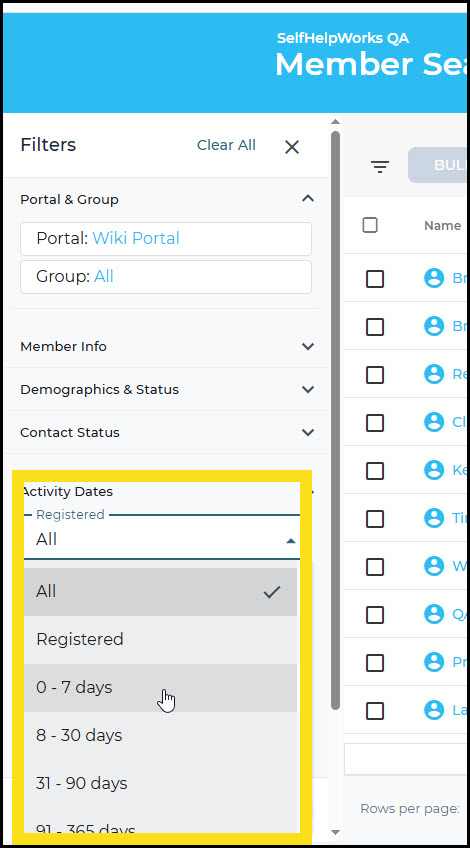
Five bands now define how member activity is categorized across the admin site, applying consistently to Added Activity, Login Activity, and Registered Activity everywhere they appear:
First Week (1–7 days)—Onboarding noise. High variance; don't draw conclusions yet.
Onboarding (8–30 days)—Early-use patterns settling in. The classic first-month retention window.
Habit-Forming (31–90 days)—The window that decides everything. Behaviors either consolidate into habits here or they don't; Avidon's CBT methodology and the habit-formation research both point to this same arc.
Established (91–365 days)—The pattern is set. Members are either integrated or they've found their floor.
Long-Tenured (365+ days)—The question shifts: it's no longer "did the product work?"—it's "is it still working?"
Consistent Application in Member Search
These bands now appear in Member Search, so admins can filter and segment by where members are in their lifecycle; not just by raw tenure numbers. "Show me Habit-Forming members who haven't logged in this week" is now a filter, not a spreadsheet project.
Powering the Tracker Dashboard: Engagement Correlation Tab
The Tracker Dashboard's new Engagement Correlation tab uses these bands as a structural axis, letting you see how engagement metrics shift across the member lifecycle. First Week spikes look very different from Established-member plateaus; the correlation chart makes that visible in a single view.
Why It Matters, in a Nutshell
Smarter segmentation—Filtering by lifecycle band is more actionable than filtering by days-since-registration; it tells you what kind of support a member probably needs right now.
Apples-to-apples reporting—When the same bands apply everywhere, your Member Search filters and your Tracker Dashboard speak the same language.
Methodology-aligned analytics—The Habit-Forming band maps directly to Avidon's CBT timelines; when you're looking at engagement in that window, you're looking at the data that matters most for behavior change outcomes.
Differentiated long-tenure insight—Long-Tenured members get their own lens because the question being asked of their data is genuinely different.
Standardizing activity bands is a small architectural change that pays outsized dividends in every report, filter, and conversation that touches member engagement data.
Coming Soon: The Brain Health Challenge
The next Autopilot Challenge drops June 1st with registration opening on May 25th, so your members have a full week to sign up before it kicks off.
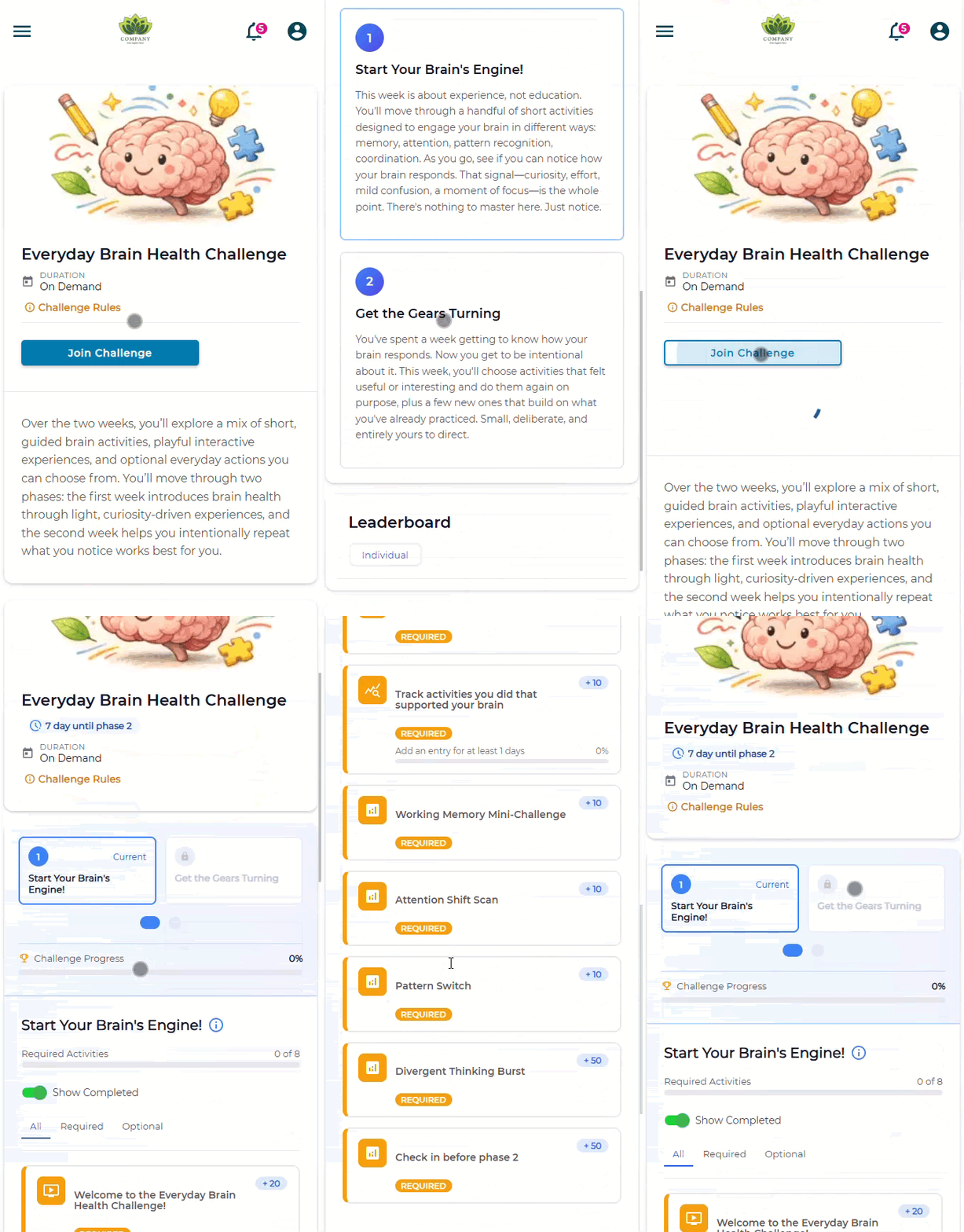
This two-week challenge is less of a wellness program and more of a two-week experiment. Participants work through a handful of short, deceptively simple cognitive tasks—pattern-switching, attention shifts, working memory exercises—and the point isn't to perform well; it's to notice what happens when your brain is actually engaged. Phase one is exploration. Phase two is doing the things they noticed worked, on purpose. It's a practical reminder that the brain, like any other system in the body, responds to regular use and that keeping it engaged doesn't have to be complicated or time-consuming.
It's also, genuinely, going to be fun.
As always, if Challenges Autopilot is enabled for your organization, this one launches automatically with no further setup required.
Communication is Key
Read the full article in the Product Communication Center, where you can also submit your thoughts and ideas.
If you want to learn more about Avidon Health, please visit our website. Want to reach out to our team of experts? Click here for our helpdesk.